Short answer
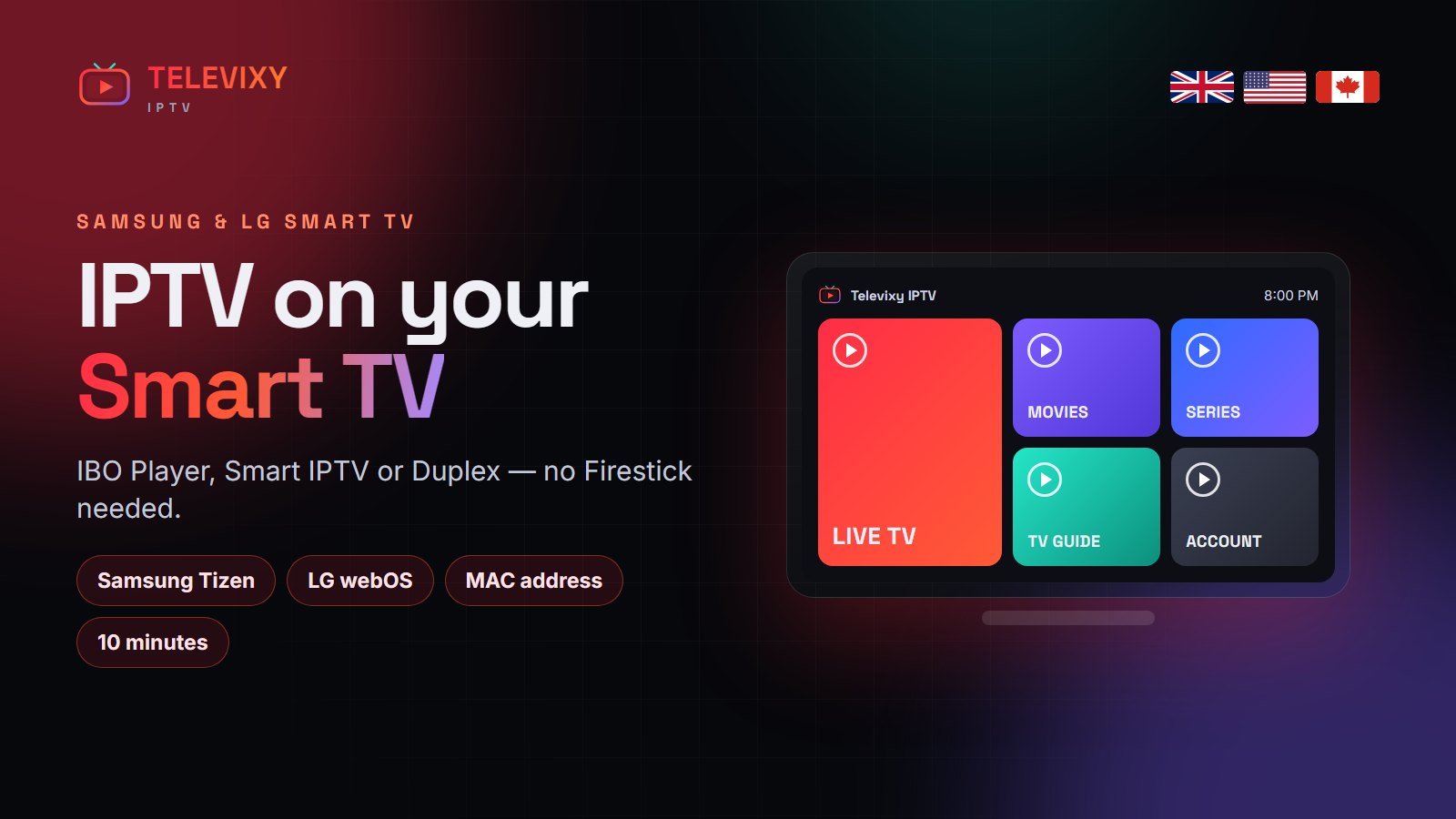
To install IPTV on a Samsung or LG Smart TV, install a player from the TV’s own store — IBO Player, Smart IPTV or Duplex Play — note the MAC address it shows, and add your playlist to that MAC. Televixy customers can send us the MAC on WhatsApp and we load the playlist for them. It takes about 10 minutes and needs no Firestick.
Smart TVs are the cleanest IPTV setup there is: one remote, no extra box, no HDMI input to switch. The catch is that Samsung (Tizen) and LG (webOS) only allow apps from their own stores, so you cannot install TiviMate. Here is what works instead, step by step.

Which app to use on each TV
| TV | Best app | Notes |
|---|---|---|
| Samsung (Tizen, 2018+) | IBO Player | Fast guide, handles big playlists, small yearly licence |
| LG (webOS 4+) | IBO Player or Duplex Play | Both in the LG Content Store |
| Samsung / LG older models | Smart IPTV (SIPTV) | One-off licence, simple interface |
| Sony, Philips, TCL, Hisense (Android / Google TV) | TiviMate | Same as an Android box — see the Firestick guide |
Step by step: Samsung Smart TV
- Press Home → Apps → search IBO Player → Install.
- Open IBO Player. Write down the MAC address and device key on the first screen.
- Send both to Televixy on WhatsApp, or add the playlist yourself on the player’s website using your M3U link.
- Restart the app. Your channels, guide and VOD load in about a minute.
Step by step: LG Smart TV
- Open the LG Content Store → search IBO Player or Duplex Play → Install.
- Open the app and note the MAC address (and device key for Duplex).
- Send them to us, or add the playlist on the app’s website.
- Restart the app and pick a channel.
The player app is not the service. IBO Player, Smart IPTV and Duplex are empty players with their own small licence; your Televixy subscription is what fills them with channels.
Tuning a Smart TV for smooth IPTV
- Use Ethernet if the router is near — TV Wi-Fi chips are often weaker than a Firestick’s.
- Turn off motion smoothing (Auto Motion Plus on Samsung, TruMotion on LG) — it adds lag and judder to live sport.
- Hide countries you do not watch in the playlist settings so the guide scrolls faster.
- Restart the TV fully once a week (hold the power button until the logo appears).
More IPTV guides worth reading
More Smart TV IPTV guides from other services:
- StrimoIPTV’s Smart TV guide — the best IPTV setups for Samsung, LG and Android TVs.
- Nexomir — an IPTV service built for the UK, USA and Canada.
- Tivo 8K’s free-trial guide — how to run a 24-hour test properly.
Frequently asked questions
Can I install IPTV on a Samsung Smart TV without a Firestick?
Yes. Install IBO Player or Smart IPTV from the Samsung Apps store and add your playlist to the TV’s MAC address.
What is the best IPTV app for LG TV?
IBO Player and Duplex Play are the most reliable on webOS; both are in the LG Content Store.
Why does the app ask for a MAC address?
Smart TV players link your playlist to the TV’s MAC address instead of a login screen. Send it to us and we load your Televixy playlist.
Do I have to pay for IBO Player?
IBO Player and Smart IPTV charge a small one-off or yearly licence after a free period. That is separate from your Televixy subscription.
Smart TV install, done for you
Send us your TV’s MAC address on WhatsApp — we load the playlist and stay until it works.